
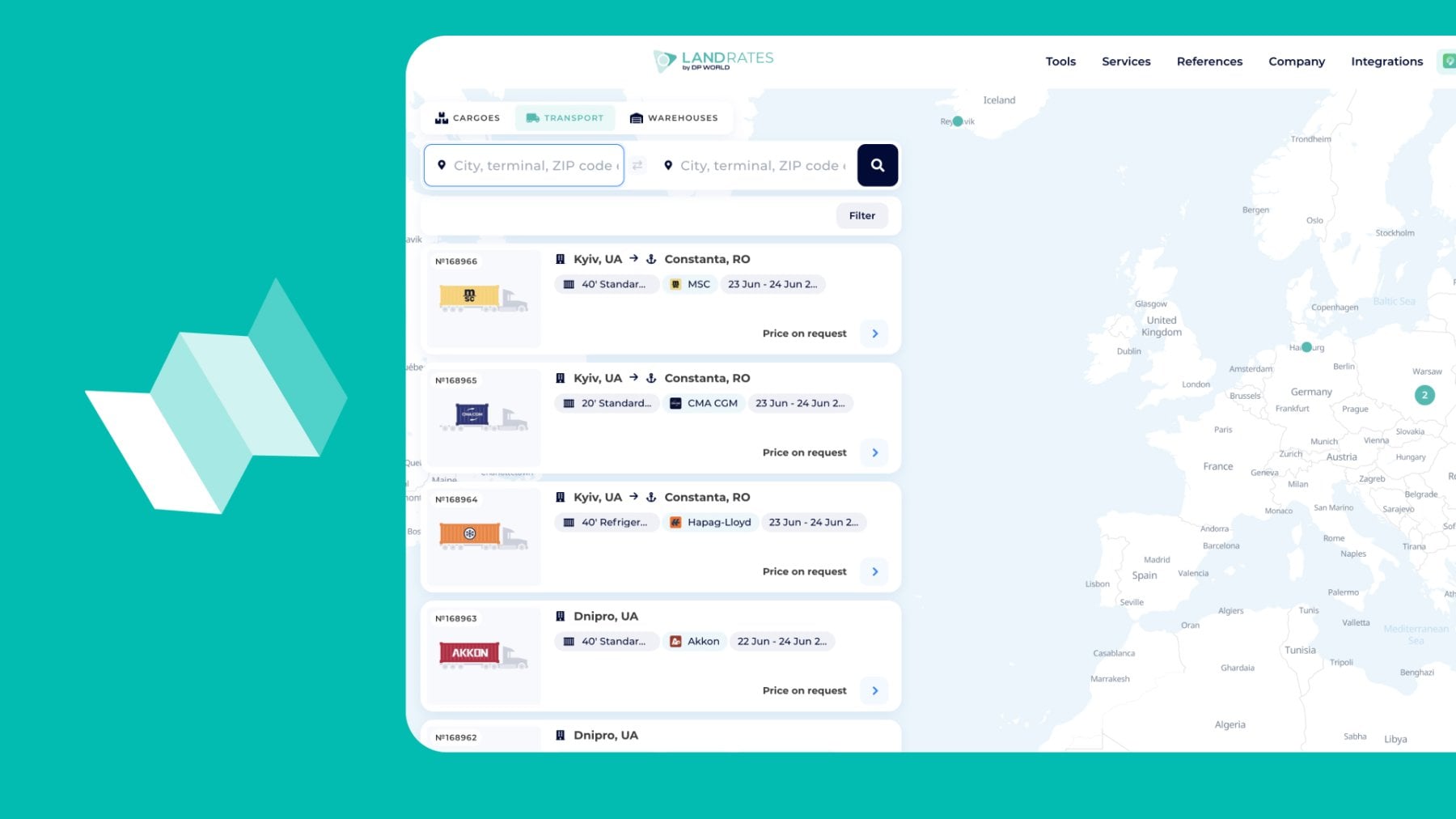
Finding transport means matching the right equipment with the right location, date, route, and cargo requirements.
The Transport tab in LandRates Logistics Map connects both sides.
It allows:
- shippers, cargo owners, and freight forwarders to find available transport;
- carriers and fleet operators to publish transport capacity and receive targeted requests.
The first article in this series explains how to request and quote land shipping through the Cargoes tab.
Let’s see how the Transport tab works for companies looking for equipment and providers offering it.
Overview of the Transport Tab
Open LandRates Logistics Map → Transport.
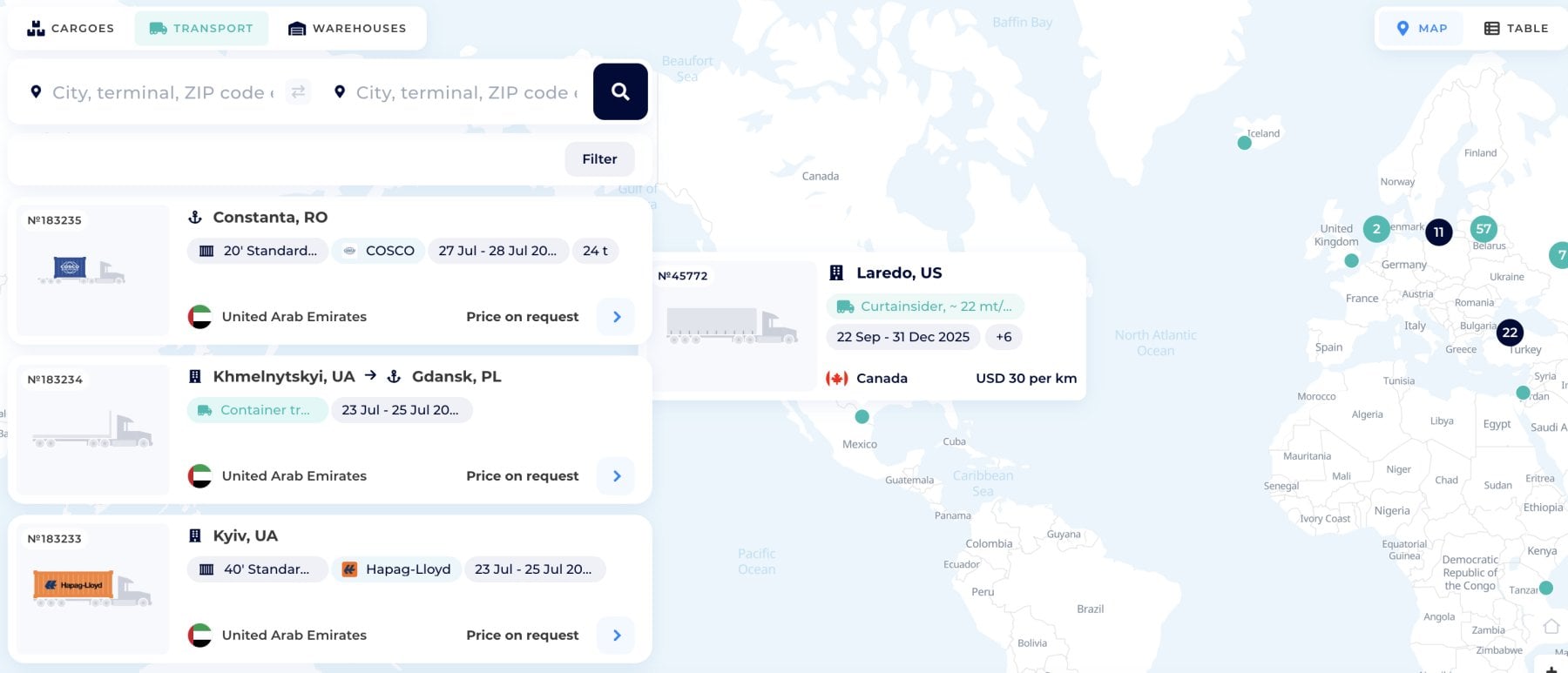
The interactive map shows available transport as cards and geographic points. Users can review equipment near a loading location or search for transport connected with a planned route.
Listings show the transport type, loading location, destination, available dates, capacity, price, and provider details.
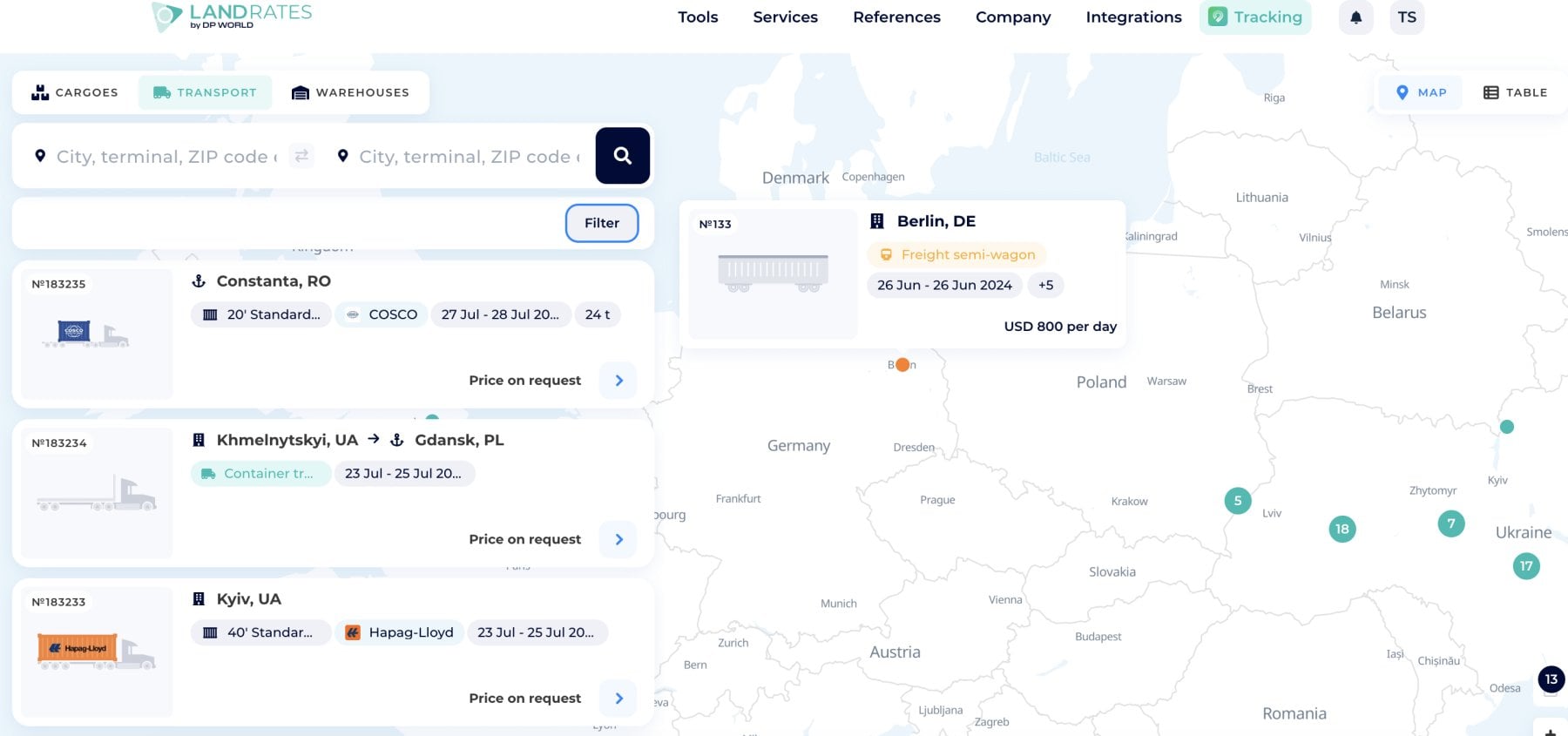
The Transport tab represents the capacity side of the Logistics Map. Cargoes shows shipment demand, Transport shows available equipment, and Warehouses connects users with storage and facility services.
For Shippers & Freight Forwarders: Find available transport
The shipper also needs to check its location, availability date, loading capacity, volume, dimensions, route, and operating conditions.
1. Search transport by Location or Route
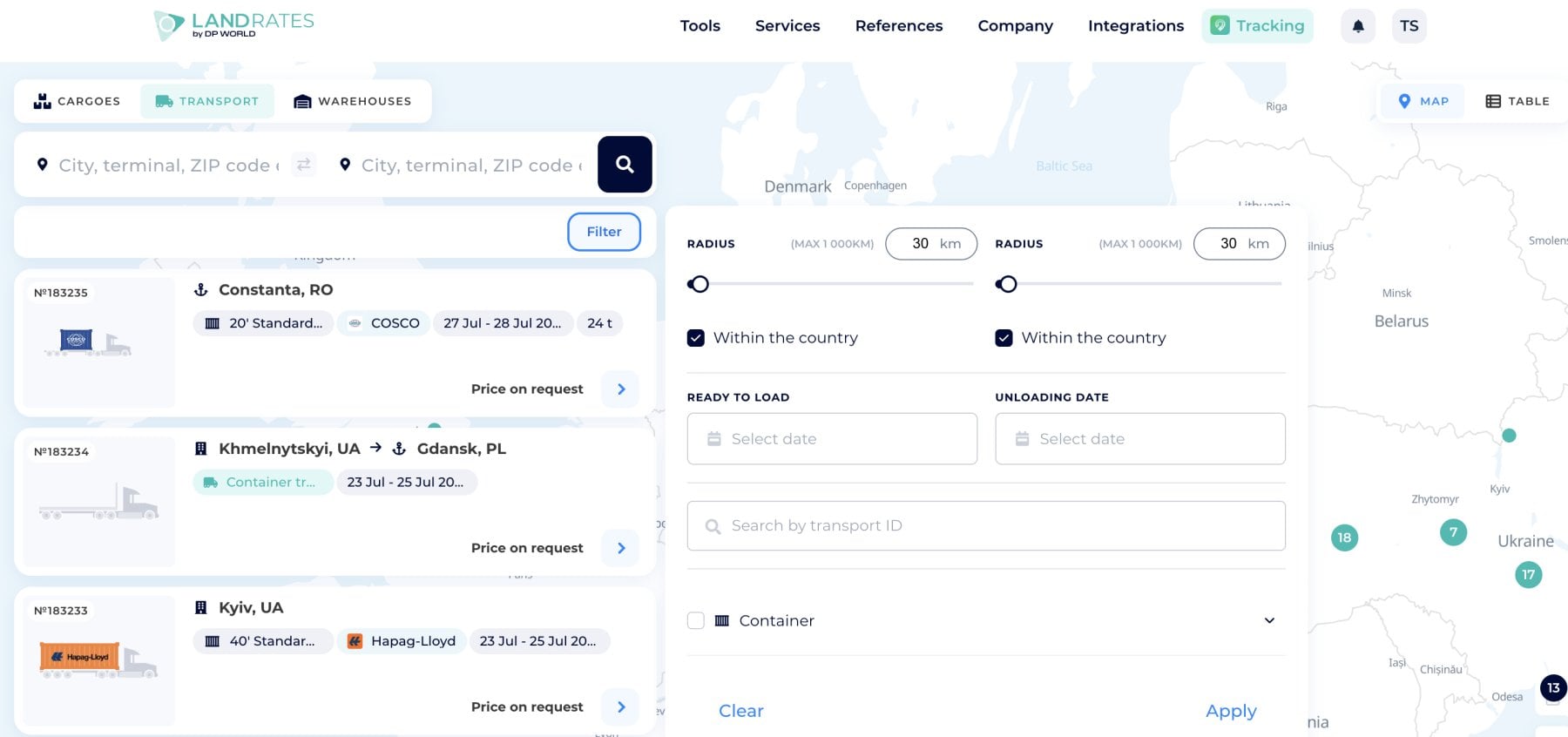
Enter the loading and destination points in the search fields. You can adjust the search radius for both locations up to 1,000 km and select Within the country when the equipment must remain inside the chosen country.
The results appear as transport cards and map points. Switch between Map and Table views depending on how you prefer to compare available transport.
When no suitable equipment is visible, shippers can publish a cargo request and receive tailored offers from freight providers.
Compare and accept the best offer with one click, receive immediate booking confirmation, and proceed with tracking in real time.
2. Filter available transport
Use Filter to search by:
- ready-to-load date;
- unloading date;
- transport ID;
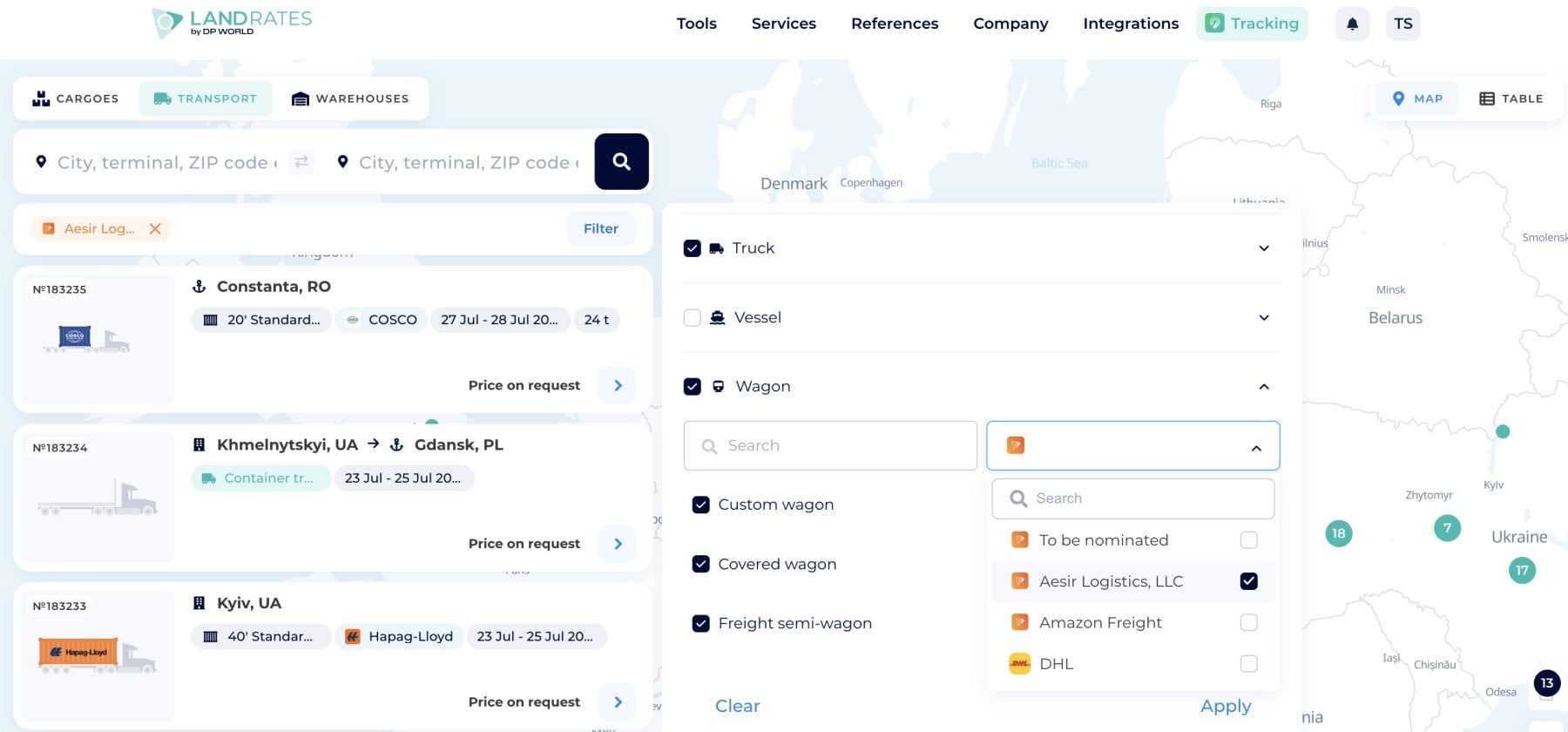
- equipment category and type;
- transport provider;
- price range and pricing basis;
- your transport or your company’s transport.
Equipment categories include containers, trucks, vessels, wagons, and aircraft, with more specific types available inside each category. For example, users can filter trucks by body type or wagons by design and capacity.
You can also select a specific transport provider or leave the carrier To be nominated.
Before selecting road equipment, use the LandRates reference guide to compare truck types.
For rail freight, you can also compare railway wagon types according to loading capacity, cargo type, and wagon design.
3. Сompare Transport Offers
Each result card shows the main operational details:
- transport ID;
- loading and destination points;
- transport type;
- available dates;
- listed price or Price on request.
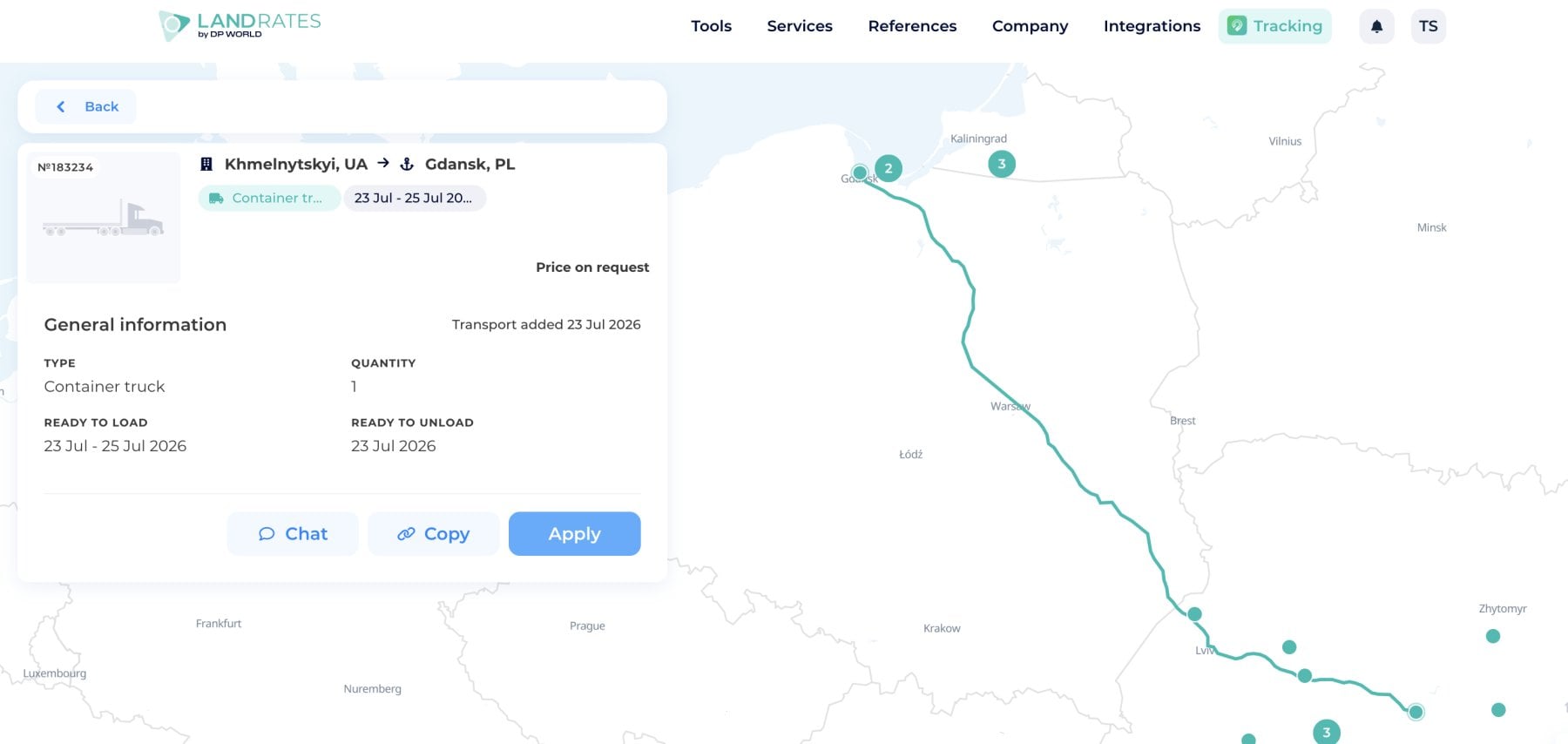
Click a card to view the route on the map and open the complete transport information.
The full card shows the equipment type, quantity, ready-to-load period, ready-to-unload date, and the date when the transport was added.
4. Check capacity before applying
Cargo fit should still be checked against the actual package or pallet data. The Load Calculator can help calculate pallet loading, estimate trailer utilization, and check whether cargo dimensions fit the selected vehicle.
Final cargo fit may also depend on stackability, weight distribution, loading method, vehicle access, and cargo restrictions.
This is especially important when comparing partial load, LTL, and FTL transport options.
5. Chat, Copy, or Apply
After opening a transport offer, you can choose one of three actions:
Chat — contact the transport provider and clarify availability, cargo fit, route, or price.
Copy — save and share the direct link to the transport card with a customer, partner, or operations team.
Apply — send a transport request connected with the selected equipment.
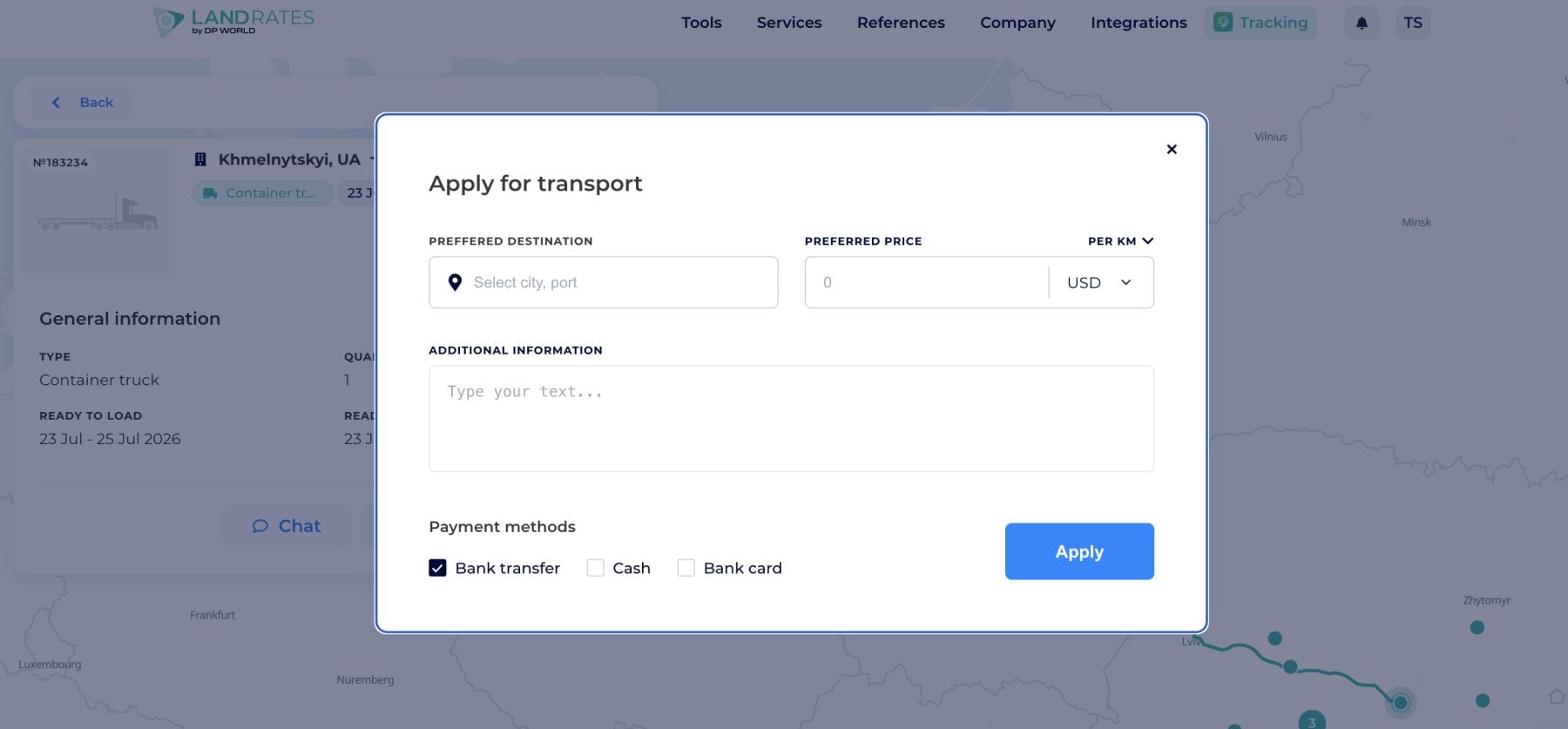
"Apply" is a transport request, not an automatic booking. The provider may still need to confirm current equipment availability, cargo compatibility, loading and delivery dates, final route, freight rate, additional costs, and service conditions.
For a shipment requiring a dedicated vehicle, users may also review FTL shipping as well as LTL shipping suitable for smaller shipments that can share available capacity.
Transport search and Cargo requests work together
The Transport and Cargoes tabs solve the same matching problem from different directions.
Use Transport when suitable equipment is already published. Use Cargoes when you need to publish a shipment and receive individual quotations.
Together, the tabs support both directions of the market: shippers find capacity, while carriers find cargo.
If suitable capacity has already been published, the Transport tab provides a direct search workflow. If not, the shipper can place a land freight request and allow carriers to respond.
For Carriers & Fleet Operators: Promote your services and available capacity
Empty trucks, trailers, and wagons are difficult to sell when potential customers cannot see where they are available.
Carriers can publish available equipment with its location, ready date, route, capacity, dimensions, price, and service conditions.
How to add Transport
Open:
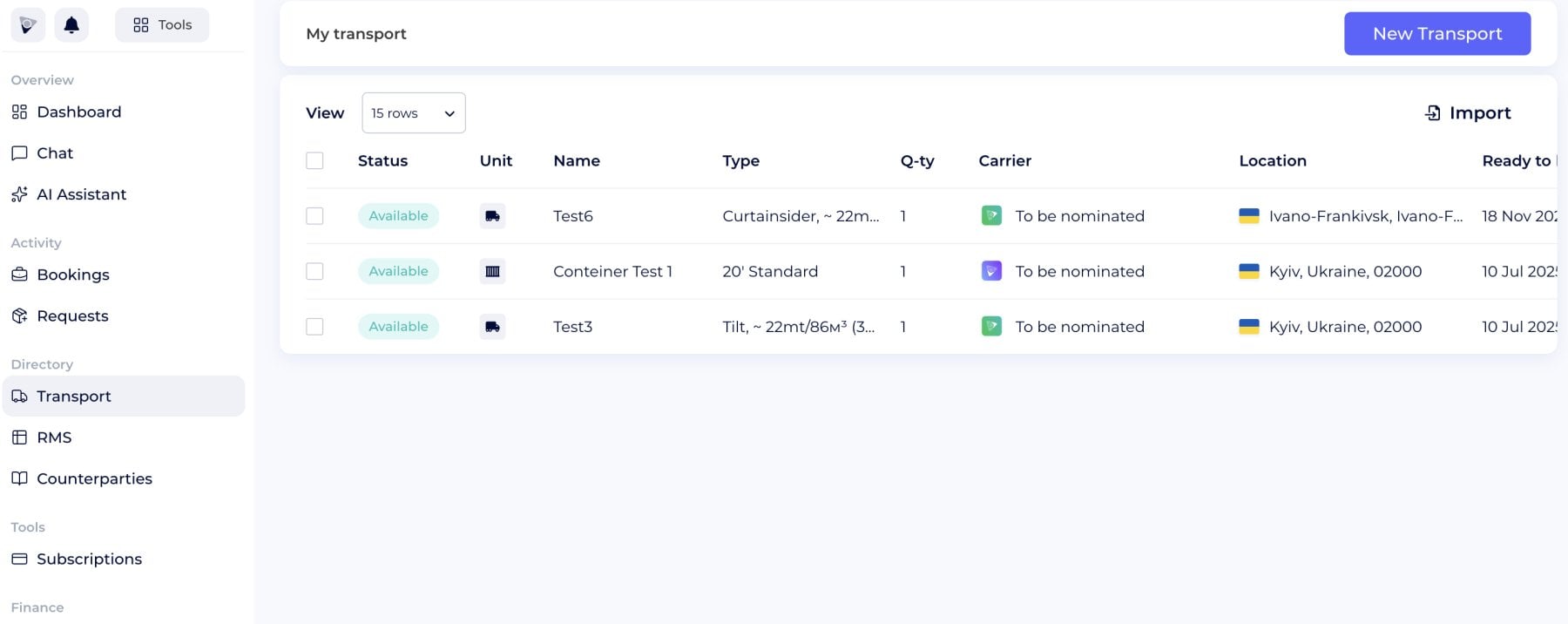
Virtual Office Profile → Activity → Transport → Add transport
The form adapts to the selected equipment category.
1. Add equipment information
Select the transport type and add the name, model, registration or unit number, and provider details.
2. Add capacity and dimensions
Enter carrying and cubic capacity. Add dimensions, payload, and loading restrictions where relevant.
3. Set the location and ready date
Add where the equipment is available and when it is ready to load. These fields help match the transport with relevant route and date searches.
4. Add a preferred destination
Add a destination when the equipment is planned for a specific route or return load. Leave it open when the transport can serve different directions.
5. Add the transport price
Set a fixed or minimum price and currency. You can also add a per-kilometer or daily rate, downtime charges, and payment methods.
The final rate may still depend on the route, cargo, tolls, waiting time, and special handling.
6. Add a description and photos
Use the description for loading conditions, service area, temperature requirements, cargo restrictions, included services, and extra charges.
Add photos to show the vehicle or wagon and its loading configuration.
After saving, your fleet can appear as a transport card on the Logistics Map.
Manage transport listings
Through Virtual Office, providers can update equipment details, location, dates, destinations, capacity, prices, and card links or remove unavailable listings. Keep the data current to avoid irrelevant requests.
Promote return loads and backhaul capacity
The Transport tab can also support backhaul planning.
Providers can publish trucks after delivery, trailers waiting for return loads, wagon capacity on planned corridors, or specialized equipment available within a region.
Shippers searching the same location, date, route, or equipment type can find the listing and apply. This creates a practical connection between available fleet capacity and active cargo demand.
Carriers interested in expanding their presence can also review the LandRates trucking network, which supports the promotion of FTL, LTL, and specialized trucking services.
Web Integration
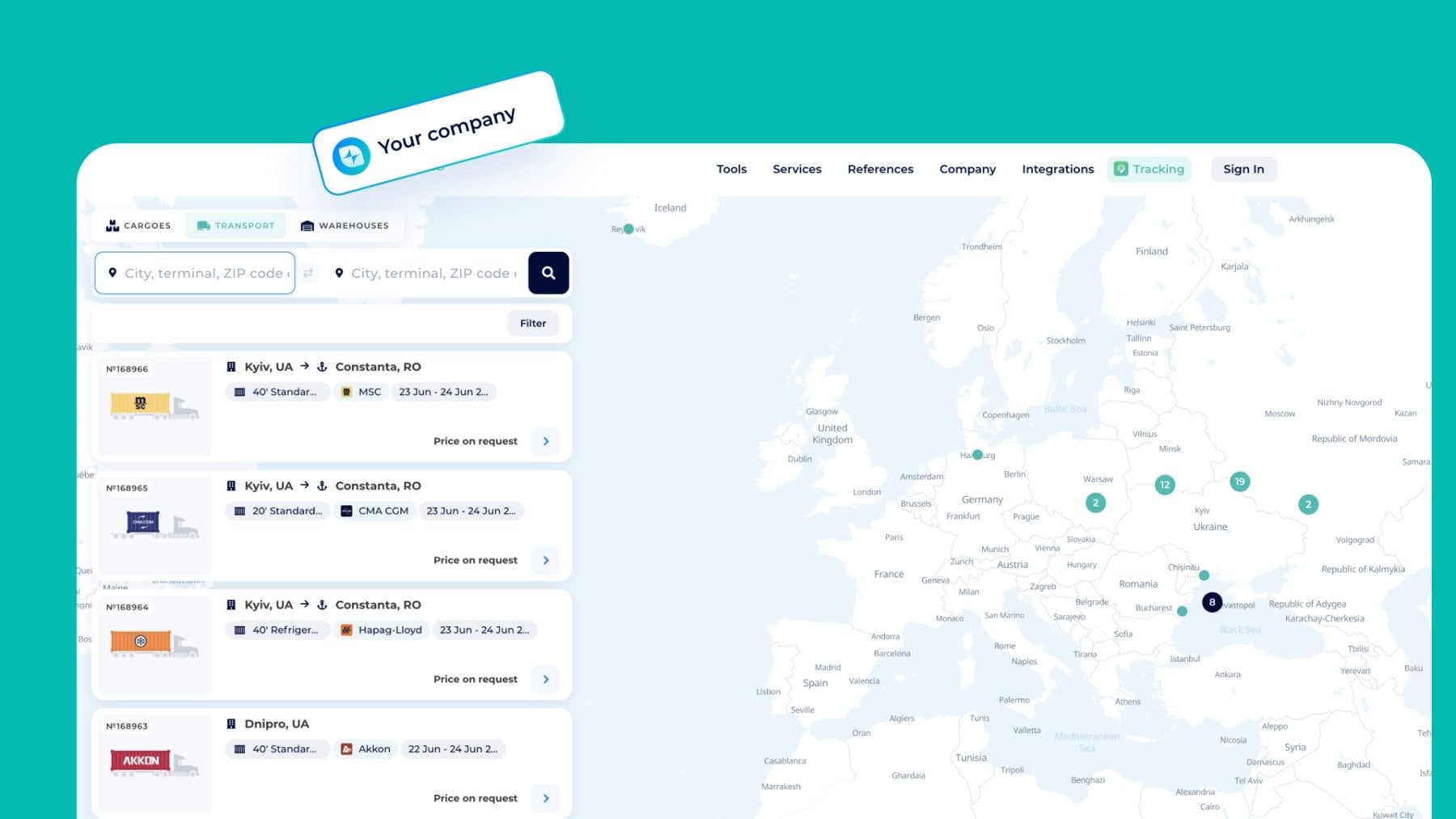
The Logistics Map can be integrated into a company website as a white-labeled cargo and transport marketplace. It can support fleet publishing, route visibility, transport requests, and cargo-capacity matching through the company’s own interface.
Explore documentation and request the integration demo from our team.
API Connection
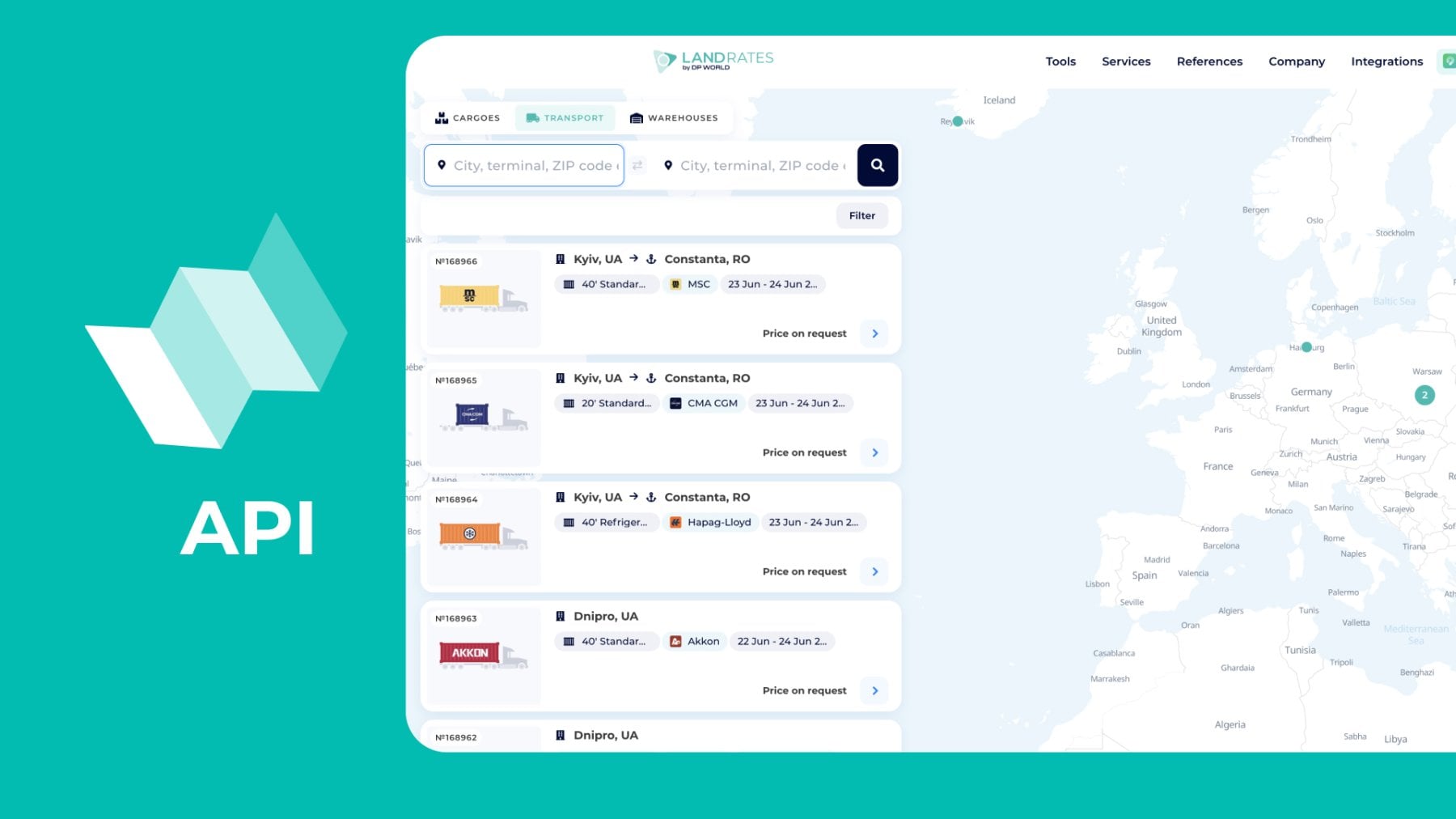
The Logistics Map API can connect transport data with TMS, ERP, CRM, fleet management systems, pricing tools, customer portals, and operational dashboards. For deeper automation, connect through the API to synchronize fleet capacity, manage planned routes, update transport prices, and receive matching requests to connect applications with quotation workflows.
Connect cargo demand with available transport
The Transport tab helps shippers find equipment by route, date, type, capacity, and price. It also helps carriers publish available fleet, promote return loads, and receive targeted requests. Open the Transport tab to search available capacity or publish equipment for your next route.
For advanced access and custom integrations, drop us a line at it.sales@searates.com. Stay tuned for further guides about the Logistics Map for the Warehouses, and do not miss the one about Cargoes already live.
FAQ
What is the Transport tab in LandRates Logistics Map?
It is an interactive transport marketplace where users can find available equipment or publish fleet capacity.
Who can use the Transport tab?
Shippers, cargo owners, freight forwarders, carriers, fleet operators, transport owners, logistics providers, and 3PL companies can use it.
What transport equipment can be listed?
Providers can publish trucks, trailers, railway wagons, containers, and specialized transport supported by the platform.
Can I search for trucks by route?
Yes. Users can search transport by loading location, destination, and availability date.
Is Apply an instant transport booking?
No. Apply sends a request to the provider. Availability, cargo fit, final price, route, dates, and service conditions still need to be confirmed.
Can carriers promote return loads?
Yes. A carrier can add the current loading location, ready date, and preferred destination to promote backhaul capacity.